TV Clásica on Chromecast: how to cast from Android
A Cast button depends on the app and video source. Check for native casting first, then learn when Google Home screen mirroring may help and what it cannot do.
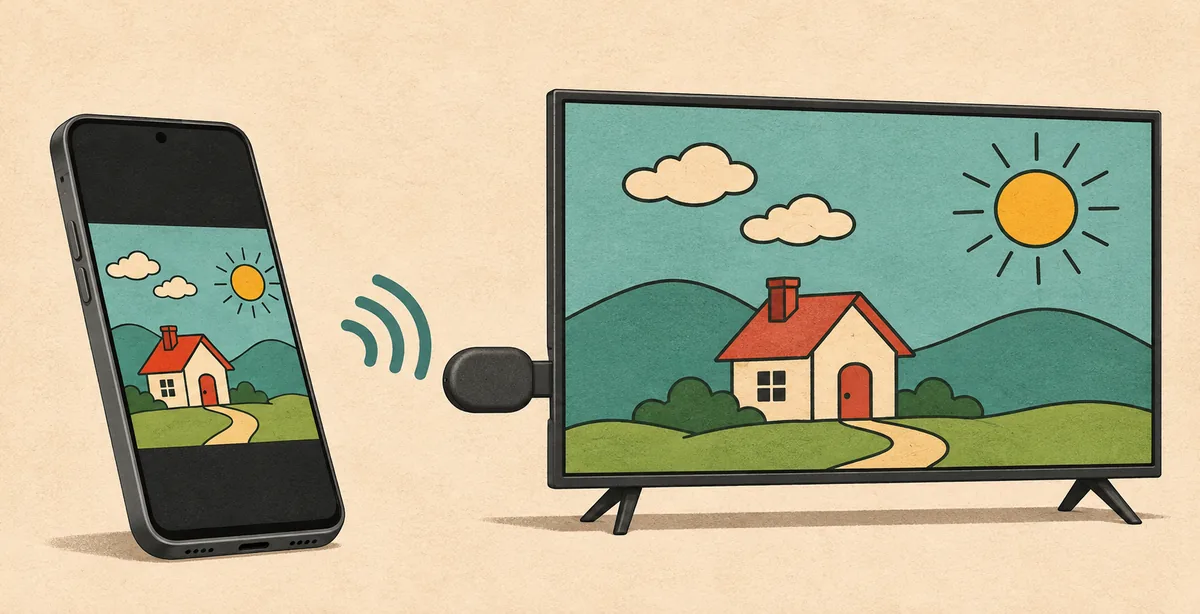
Quick answer: TV Clásica on Chromecast depends on the player
Can you watch TV Clásica on Chromecast? We could not verify that its player includes a Google Cast button. Open a video on your Android phone and check the playback controls. If the Cast icon appears and lists your receiver, try it; if it does not, do not assume native casting is available.
A classic Chromecast receives compatible streams; it does not install Android APK files. Chromecast with Google TV and Android TV are different platforms with their own interfaces and app availability. This guide covers sending playback from a phone, not installing TV Clásica on a television. Installation requirements depend on the exact model and region.
If the player has no Cast control, Google Home screen mirroring is a separate option to test. Google's instructions specify Android 8.0 or later and the phone and receiver on the same Wi-Fi network. Mirroring shows the whole phone screen and may still be blocked by playback protection or the source app.
Check these details first
Google Home screen mirroring requires Android 8.0 or later. Menu names can vary by Android and Google Home version.
Chromecast, Google TV, and other receivers differ
The Chromecast name covers different devices. Identify your receiver before looking for an installation or casting option.
| Device | What it can do here | What not to assume |
|---|---|---|
| Classic HDMI Chromecast | Receives a compatible stream or may mirror a phone, depending on its software and Android device. | It does not install Android APKs or add a Cast button to an app. |
| Chromecast with Google TV | Has its own interface; check app availability and compatibility for the exact model. | Google TV does not prove that TV Clásica is published or works there. |
| TV with Google Cast built in | May appear in a compatible player's receiver list or Google Home. | The TV model, firmware, and network can affect discovery. |
| Roku or Fire TV | Uses a different platform with its own installation and casting options. | Do not apply Chromecast steps or install an APK on an unsupported receiver. |
How to try TV Clásica on Chromecast from Android
Try the player's own Cast control first. Mirror the phone only if you are comfortable showing its full screen on the TV.
Confirm playback on the phone
Open TV Clásica on Android and test a short clip. If it fails on the phone, check the app and connection before troubleshooting the receiver.
Identify the receiver
Distinguish a classic HDMI Chromecast, a Google TV model, and a TV with Cast built in. Check the device name in Google Home or TV settings.
Use the same Wi-Fi network
Connect the phone and receiver to one local network. Guest Wi-Fi, a VPN, or router isolation can prevent them from seeing each other.
Look for Cast in the player
Start playback and check its controls. If Cast appears, select the intended receiver and confirm that the TV shows the selected content.
Try Google Home mirroring if needed
On Android 8.0 or later, open Google Home, press and hold the receiver tile, then choose the screen-casting option. Read permission prompts before accepting.
Test briefly
Play for a few seconds and check picture, audio, and visible notifications. If playback fails, stop the session and return to the phone.
Stop projection when finished
Stop mirroring from Google Home or Android and confirm that the TV has returned to its normal screen.
Sending one video is different from mirroring a screen
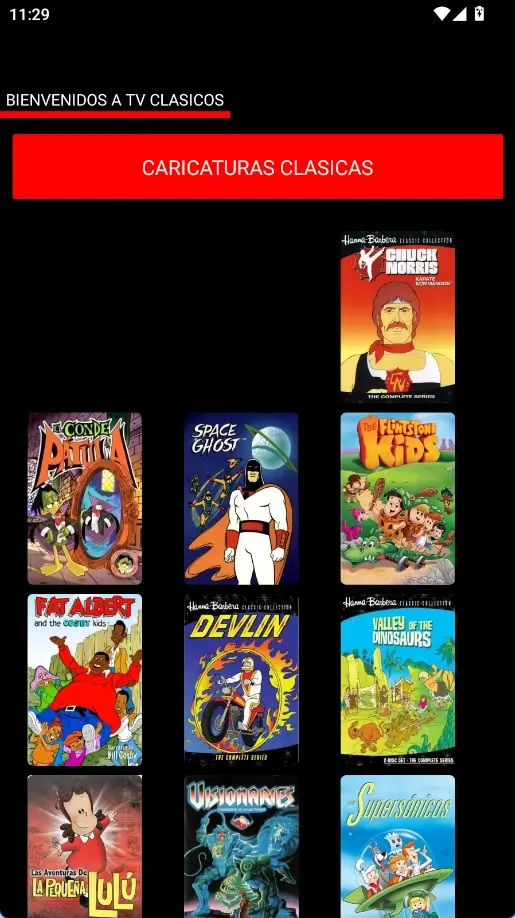
The diagrams are conceptual. The TV Clásica image shows its Android catalog and does not prove Cast compatibility.
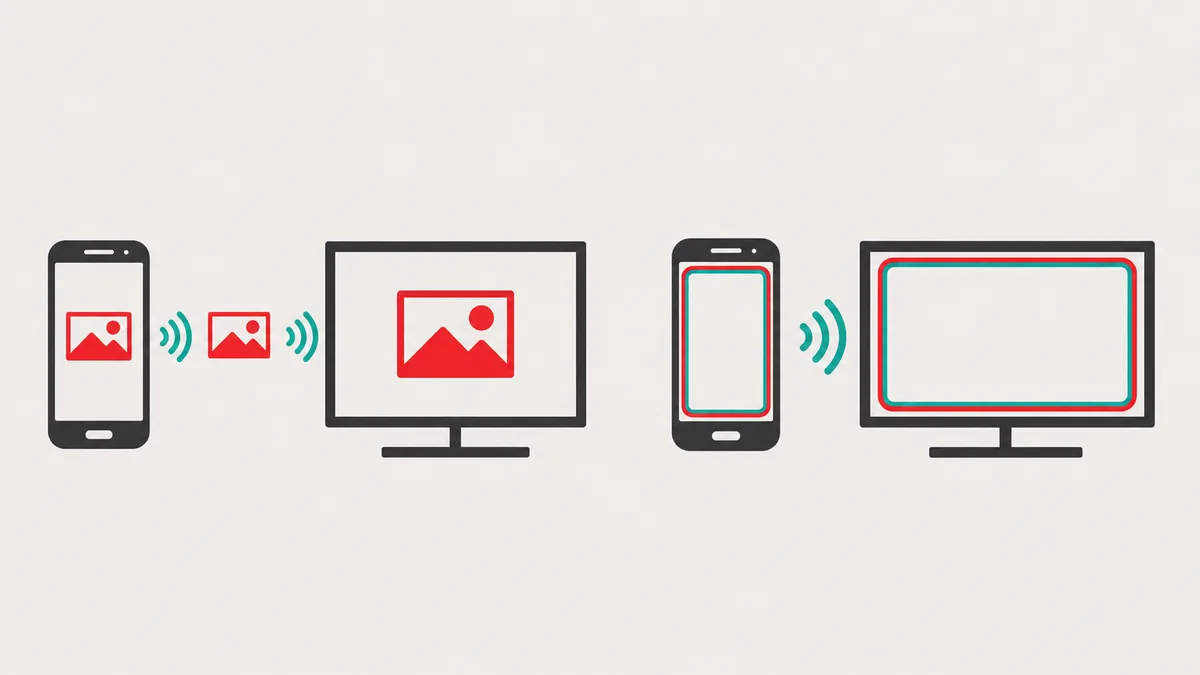
Native casting or screen mirroring
Choose based on the control you actually see on Android, not the TV's marketing name.
Cast button inside the app
If the player shows Cast, select it and use the phone as a controller. We could not verify this control in every TV Clásica version, so avoid unknown add-ons that promise to create it.
Mirror with Google Home
Mirroring reflects the entire phone and can show notifications or other apps. It depends on Android and the receiver, and it does not bypass DRM or capture restrictions.
Install on an Android TV platform
A classic Chromecast does not install APKs. Google TV, Android TV, and Android TV boxes are separate platforms; check the device guide and app availability before installing.
Connect by HDMI
Some phones can output video over HDMI, but support varies by model and content protection. Check the phone maker's requirements; an adapter alone cannot guarantee playback.
When Chromecast is missing or video fails
Change one thing at a time to separate network, receiver, and content restrictions.
Chromecast is not listed
Check that both devices use the same Wi-Fi and that the receiver is on. Avoid guest Wi-Fi, reopen Google Home, and restart both devices if discovery still fails.
TV Clásica has no Cast icon
That player may not offer native Cast. Try Google Home only if the receiver supports mirroring; another APK or Downloader code cannot add the feature.
The TV is black while the phone plays
The source may block capture because of DRM. Stop projection and use a supported route; do not try to bypass protection or install extensions.
Video stutters or audio is delayed
Move closer to the router, pause other downloads, and retry a short clip. Mirroring can add delay; if only one video fails, its source may be the cause.
Mirroring stops when the phone locks
Mirroring depends on the phone session. Keep the phone awake during the test; native Cast could behave differently, but we cannot confirm it in TV Clásica.
Google Home asks for permission
Read the Android prompt and grant only what is needed for mirroring. Casting does not require accessibility, SMS, or device-administrator access.
An unknown app or receiver appears
Cancel if the name does not match your TV. Do not enter passwords or install files from links opened during a casting attempt.
Privacy when mirroring a phone
Mirroring can display notifications and other apps, not just video. Turn on Do Not Disturb, close private material, and keep the phone nearby. Native Cast may send only the selected content when an app supports it.
When finished, stop the session and confirm the TV returned to its normal screen. Use receivers you recognize and do not enter passwords on links you cannot verify.
Before the TV shows your screen
- Confirm the receiver name.
- Hide private notifications.
- Stop the session when done.
- Avoid APKs claiming to unlock Cast.
Frequently asked questions about TV Clásica on Chromecast
Official setup source
- Google Help: cast an Android screen from Google Home — specifies Android 8.0 or later and the same Wi-Fi network for mirroring.
Related guides
Independent guide
tvclasica.blog is not the developer of TV Clásica or Google Chromecast. This guide describes general casting options and does not guarantee compatibility, content availability, broadcast rights, or the safety of external sources. Check the service and rules that apply in your country.