TV Clasica Downloader: install the APK on Fire TV, Android TV, and TV Box
Downloader is useful when your TV browser is awkward or USB transfer is not convenient. This guide explains how to use it safely, which permission to enable, how to check the APK file, and when to return to the main TV Clasica APK download page.
Quick answer: when to use Downloader for TV Clasica
Use Downloader if you are on Fire TV, Android TV, Google TV, or an Android TV Box and do not want to move the APK from a phone. The app lets you enter a URL, download the file, and open it from the same screen. It is convenient, but it does not replace basic checks: confirm the link, make sure the file ends in .apk, and keep the unknown-app permission enabled only while installing.
The main TV Clasica APK page remains the place to check the current version, compatibility, and download link. This page focuses only on the Downloader method, matching searches such as “tv clasica downloader” and “download tv clasica downloader”.
Best for large screens
Avoid typing long paths in TV browsers, moving USB drives, or using confusing file managers.
You still need a trusted URL
Downloader installs the file you point it to. A risky link is still risky.
Limit the install permission
Allow unknown apps for Downloader, install TV Clasica, then turn that permission off again.
Quick facts
Menu names vary across Fire OS, Android TV, Google TV, and individual TV Box brands.
How to download TV Clasica with Downloader
Before you start, connect the TV to a stable network and keep the main TV Clasica APK page address ready. A phone keyboard remote can make typing easier.
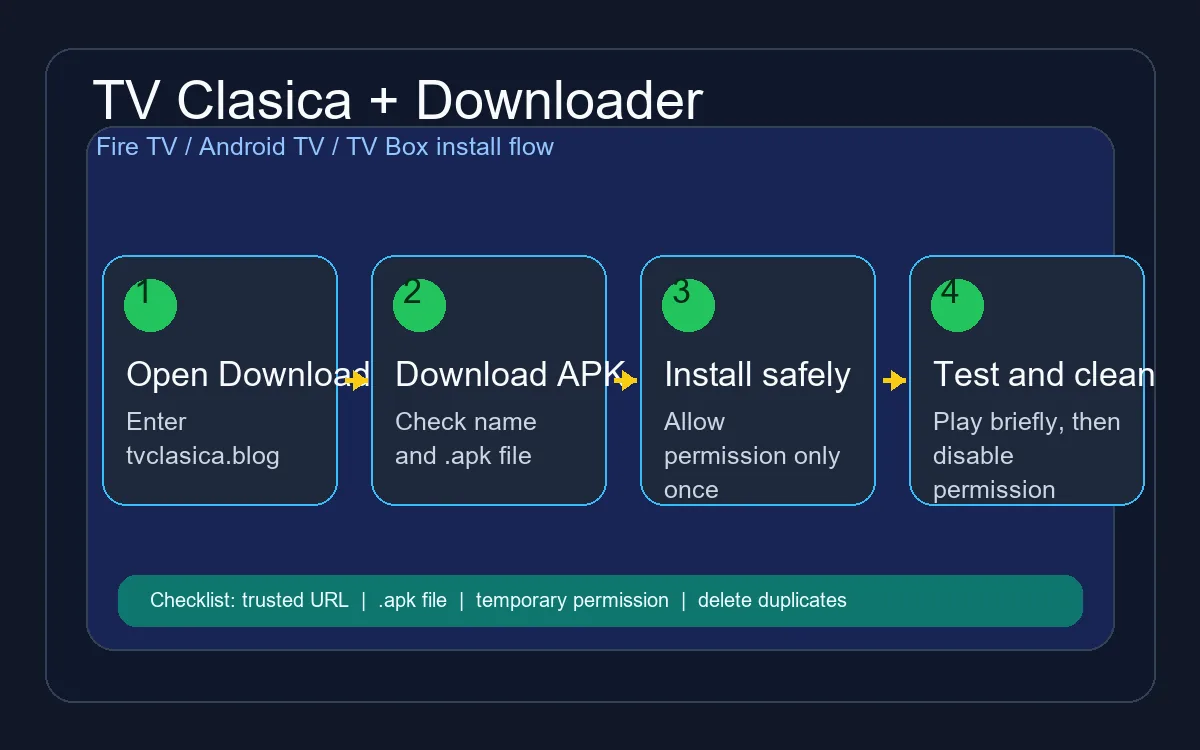
Install or open Downloader
On Fire TV, Downloader is usually available from the app store. On Android TV or Google TV, look for Downloader or an equivalent URL downloader that can save files.
Enable the permission only for Downloader
Open security or privacy settings and allow unknown-app installs only for Downloader. Avoid global permissions when your device supports app-by-app control.
Enter the main guide URL
Open Downloader, enter tvclasica.blog, and go to the download section. Avoid shortened links, forwarded messages, and pages promising MOD versions.
Download the full APK file
Wait until the download finishes. If the file is tiny, does not end in .apk, or has an unrelated name, cancel it and download again on stable Wi-Fi.
Install and test the app
Confirm the Android install screen only when the app name and permissions look reasonable. Then open TV Clasica and test playback, audio, and remote control for a few minutes.
Clean downloads and close permissions
Delete duplicate APK files from Downloader or the file manager and disable the unknown-app permission to reduce accidental installs.
Checklist before tapping Install
Downloader makes the process easier, but the safe decision still depends on checking the file before opening it.
| Check | What to inspect | Recommended action |
|---|---|---|
| URL | It should lead to a clear page, not an ad chain or endless redirects. | Type the address again if the page looks unexpected. |
| Extension | The file should end in .apk, not ZIP, EXE, or mixed names. | Do not install it if the extension does not match. |
| Size | A very small file may mean the download was interrupted. | Delete it and download again on stable Wi-Fi. |
| Permissions | Network access is expected; sensitive permissions without context are not. | Cancel if the installer asks for unusual access. |
| Version | Compare it with the latest-version guide if you are updating. | Do not replace a working app without a clear reason. |
Common Downloader and TV Clasica errors
Downloader does not download the APK
Check the URL, your network, and whether the page depends on pop-ups that the TV cannot open.
Android says “App not installed”
This often points to an incomplete file, low storage, incompatibility, or a signature conflict. Download again and avoid mixing APKs from different sources.
Fire TV does not show the install permission
Some Fire OS versions require developer options or the My Fire TV menu first. Change only what is needed and turn the permission off afterward.
The app opens but content does not load
Try another network, restart the TV, and clear cache. If installation worked, the issue may be connection or service related rather than Downloader.
Downloader code or URL: what you actually need
Searches for a Downloader code often mix two different inputs. Downloader can accept a full URL or a short code created by a third party; neither removes the need to verify the destination.
There is no permanent universal code
A code may expire, change destination, or belong to an unrelated page. If you cannot verify where it goes, use the full URL published on the main TV Clasica APK page.
A safe verification example
Before downloading, confirm Downloader shows the expected domain, the file ends in .apk, and the Android install screen identifies the expected app. Cancel if it opens ads, another app, or a different file.
Code returns nothing or the link is down
Do not try random codes. Return to the main page, check for an updated link, or use USB or Wi-Fi transfer instead.
TV Clasica Downloader FAQ
Useful external sources
- Google Play Protect explains how Android warns about potentially harmful apps.
- Downloader by AFTVnews is the developer page for the Downloader app commonly used on Fire TV.
Start with the main download, then return to Downloader
Confirm version and file details on the main page, then use these steps from your TV.
Go to the main downloadImportant notice
tvclasica.blog provides this guide for informational purposes. We are not the official developer of TV Clasica APK or Downloader. Install APK files only from sources you trust and follow the laws that apply in your country.