TV Clasica for Roku: ways to watch without installing an APK
Roku does not install Android APK files. This guide separates options you can actually test, such as a verified web source or casting from a compatible device, from methods that only belong to Android TV and TV Box.
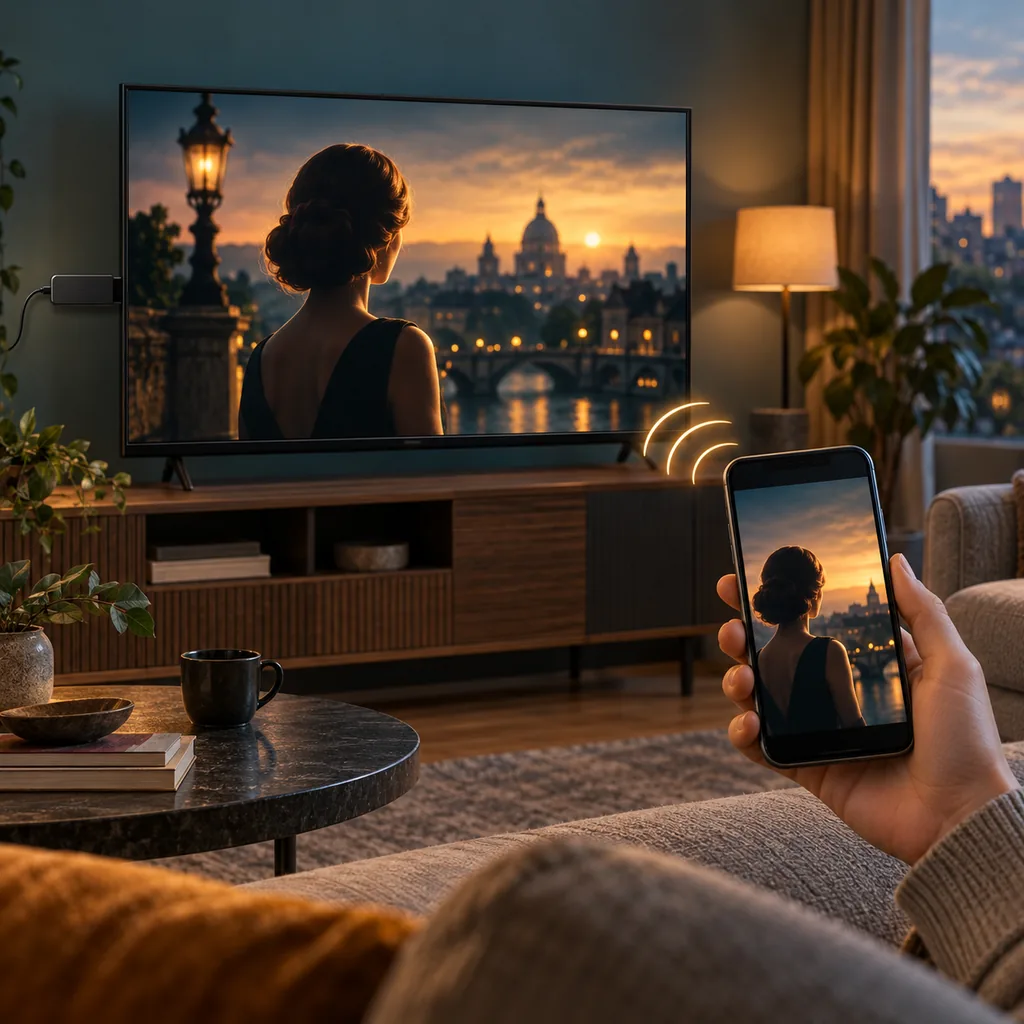
Quick answer: a TV Clasica APK cannot be installed on Roku
If you are searching for TV Clasica for Roku, start with the platform difference. Roku uses its own channel platform and does not open Android packages with an .apk extension. Renaming the file, copying it to a USB drive, or entering a Downloader code cannot turn an Android APK into a Roku channel. The correct route depends on where the content is published and which receiving features that source supports.
The simplest route is a lawful web source that you can open on another device and send through a compatible casting feature. This does not install TV Clasica on Roku: the phone or computer plays the content and Roku acts as the receiver. The attempt can fail when the page blocks mirroring, the router isolates devices, or the television and sender do not share a supported casting protocol.
Another option is to use TV Clasica on an Android phone, Android TV device, or Android TV Box connected through HDMI. In that setup the application still runs on Android and Roku is not involved in the installation. This distinction matters because Smart TV, Fire TV Stick, and Roku guides describe different systems. A working Android installation is not evidence of a native Roku channel.
Before accepting any download, check the publisher name, domain, privacy policy, and requested permissions. Avoid profiles, private channels, or files that promise to unlock Roku with an APK. When the source cannot be verified, stop and choose a known legal playback option instead.
Facts to check first
Channel, casting, and web availability can change by country, model, software update, and distribution rights. Test the option on your own equipment.
Ways to watch TV Clasica on a Roku television
Choose the route based on where playback happens. These limits are practical guidance, not a promise that a particular source is available.
| Option | How it works | Limit to expect |
|---|---|---|
| Compatible website | Open a lawful source in a browser or service on a compatible device. | Roku may not open that page, and playback depends on the service. |
| Cast button | A phone sends video to Roku when the page and receiver support the same protocol. | The button may be absent; not every video allows casting. |
| Screen mirroring | Mirror a compatible phone display to a television that supports the feature. | Delay, black video, DRM blocks, and battery use are possible. |
| Android TV Box over HDMI | Install the app on Android and connect the box to the television with HDMI. | The app runs on the box, not on Roku; you need another input and remote. |
| Official Roku channel | Use it only if the publisher releases and maintains a verifiable Roku channel. | A similar name in the store does not prove product identity. |
How to test a casting route without mixing platforms
Follow the order so you can tell whether the issue is the source, network, receiver, or platform.
1. Check the Roku model
Open Settings > System > About and note the model, Roku OS version, and Wi-Fi network. Mirroring features and menu names differ between devices.
2. Identify where playback happens
Check whether TV Clasica appears on a web source, an Android app, or a Roku channel published by the owner. Do not turn a mention into a download link without checking its origin.
3. Put devices on one network
The phone, computer, and Roku should use the same home Wi-Fi so the receiver can be discovered. Avoid a guest network and check that the router does not isolate clients.
4. Try the cast control
Start playback on a compatible source and look for its cast icon. Choose the correct Roku and wait briefly. If it is missing, the page or protocol may not support it.
5. Use mirroring only when supported
Enable Screen mirroring on Roku and the matching feature on the phone. Stop if you see a DRM warning, a black screen, or an unexpected permission request.
6. Check audio, picture, and control
Confirm that sound comes from the television, the aspect ratio is acceptable, and the phone stays awake. Mirroring normally uses more battery than local playback.
7. Disconnect when finished
Stop casting, close the web session, and remove permissions from a page you no longer use. Keep Roku, the browser, and the home network updated.
Roku, network, and the sending device
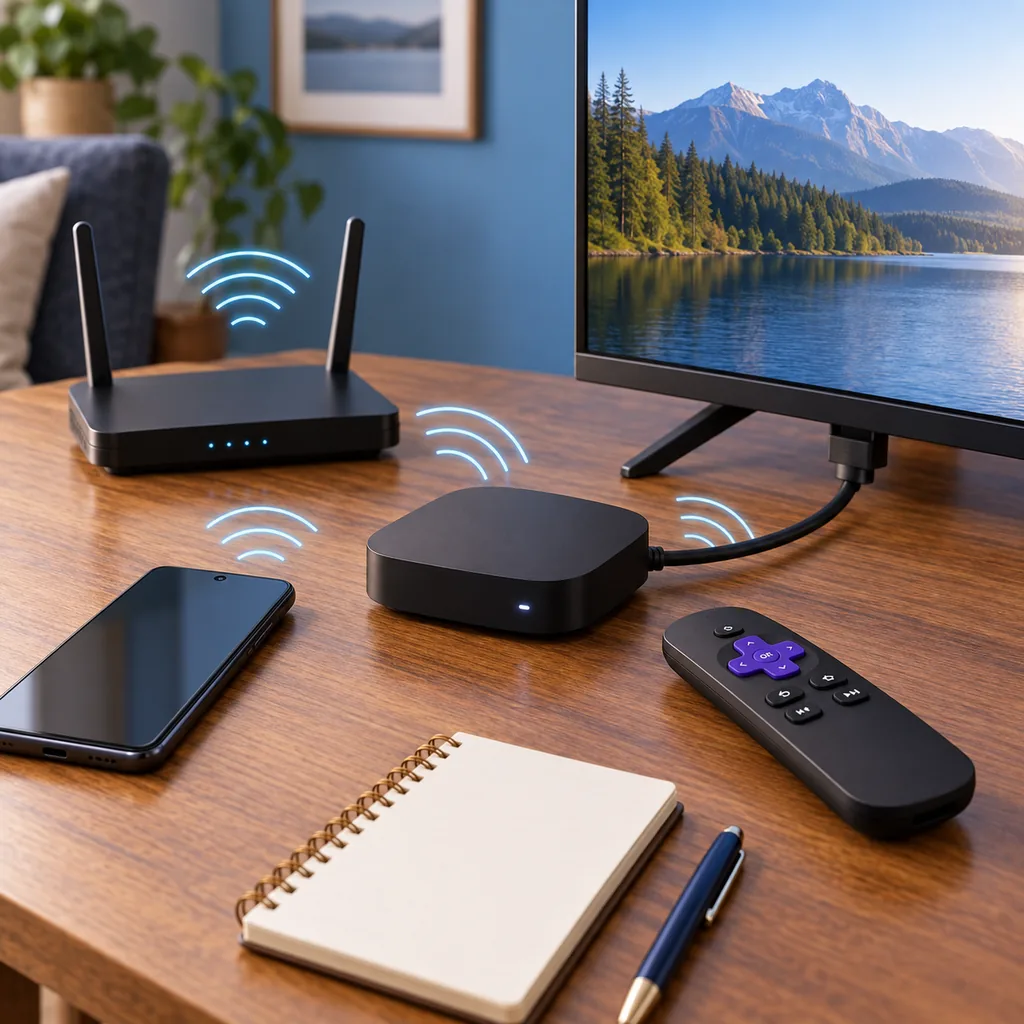
These illustrations explain the difference between installing an app and sending playback. They are not official Roku or TV Clasica screenshots.
How to spot a real solution instead of a misleading tutorial
A reliable tutorial states which device processes the video, which protocol it uses, and what happens when the receiver does not appear. A shortened URL, secret code, or renamed APK is not a Roku installation explanation. Roku and Android are separate platforms, so the evidence must match the system you actually own.
Separate a Roku channel from the account or web page that advertises it. A private channel may disappear, request a third-party login, or load content different from what you expected. Before signing in, inspect the domain in the address bar, look for a clear privacy policy, and never enter your Roku password into a form that is not part of the Roku system.
When playback stutters, test the network first: move the router closer, pause other downloads, and restart Roku. If the same source works on the phone but fails while casting, the limit may be the protocol, DRM, or resolution. Repeatedly changing APK files will not fix a Roku compatibility problem.
Roku is not Android TV
Android TV, Fire TV Stick, and TV Box installation guides do not become Roku installation instructions.
A receiver does not create content
Casting and mirroring send playback that already exists; they do not turn an unsupported source into a channel.
The network matters
A guest network, VPN, or router isolation can hide Roku even when both devices have Internet access.
The source controls support
When a page blocks DRM or offers no casting feature, Roku cannot force the video to play.
Common problems and platform limits
Use the symptom to decide whether to inspect the source, network, or device compatibility.
Roku is missing from the device list
Confirm the same Wi-Fi, leave the guest network, and restart both devices. If the site does not implement a supported protocol, the receiver will not appear.
The picture is black or stops
The content may use DRM or block mirroring. Try an authorized web source or a compatible playback device; do not install an APK converter.
Video lags and audio is out of sync
Move closer to the router, close other streams, and try a lower resolution. Screen mirroring usually adds more delay than native casting.
A channel asks for an unknown code or account
Do not enter your Roku password on an external site. Check the publisher and remove the channel if its identity and data policy are unclear.
You want to install the APK from USB
Roku does not provide an Android installer for .apk files. Use an Android TV Box over HDMI if you need to run the Android application.
The alternative works on Android but not Roku
That can be expected: the app and receiver have different requirements. Keep the Android route separate and do not describe it as native Roku support.
TV Clasica for Roku FAQ
Platform references
- Official Roku support — model, network, mirroring, and feature help.
- Google Android casting help — general casting requirements; the exact feature depends on the receiver.
Independent notice
tvclasica.blog is not the TV Clasica or Roku developer. This guide describes technical limits and general options; it does not guarantee availability, security, legality, or content rights. Verify the source and local rules before using a service.