TV Clasica Live: watch channels without mixing up download, app and signal issues
People searching for TV Clasica live may want different things: opening live sections in the app, installing the APK on a TV, or fixing playback interruptions. This guide separates those cases so you can check device, connection, version and source before reinstalling.
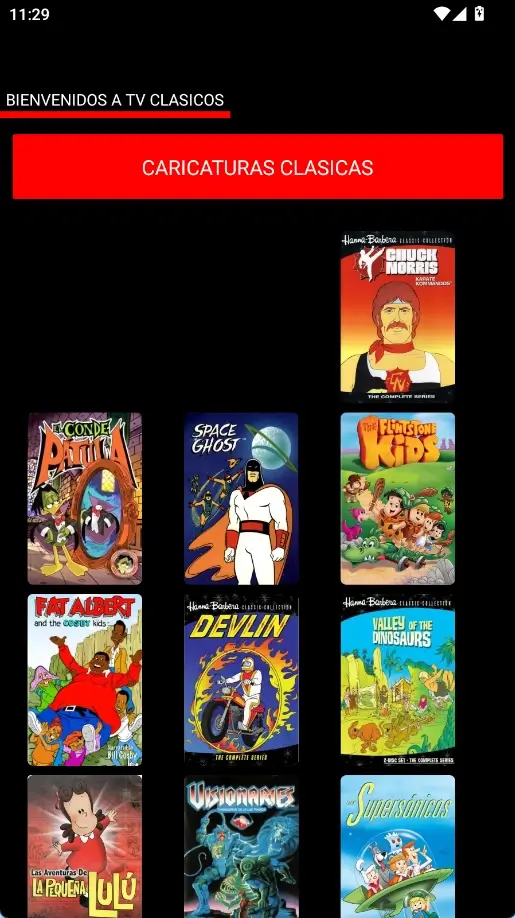
Quick answer: what to check before watching TV Clasica live
To watch TV Clasica live, three things need to work together: a compatible app version, a stable connection and a device that can keep video playback running. If one part fails, the issue can look like a dead channel even when the real cause is cache, weak Wi-Fi, permissions or an incomplete install.
This page does not replace the main APK download page. It is a usage guide: how to enter live sections, which categories to test first, when to update, what to do when a channel keeps loading, and when to move from phone to Smart TV or TV Box.
Start with the connection
Live streaming is more sensitive than loading a list. Use stable Wi-Fi, avoid slow VPNs and close background downloads.
Separate mobile and TV use
Phones use touch controls. Smart TV and TV Box setups need remote-friendly navigation or a Bluetooth mouse.
Do not reinstall blindly
If only one channel fails, reinstalling the APK may not help. Check cache, version, source and other categories first.
Quick facts
Channel availability can change. Use this guide for playback diagnosis, not as a promise of a fixed channel list.
What “live” means inside TV Clasica
Not every TV Clasica live result solves the same need. Separate live streams, classic library browsing and playback errors before changing settings.
Signals or channels
When a section plays continuously, check whether one signal fails or every category fails. That changes the diagnosis.
Classic on-demand content
Some sections open movie, series or cartoon lists. If those lists load, the installation is probably fine.
Variable availability
In free streaming apps, links, categories and servers can change. A missing channel does not always mean your APK is damaged.
Avoid overpromising pages
Be careful with claims about guaranteed channels, premium versions or MOD files. Prefer recognizable sources and minimal permissions.
Recommended flow for watching TV Clasica live
Follow this order before downloading another APK. It starts with the most common and least risky fixes.
Open the app and test a stable category
Choose a section that has loaded before, wait a few seconds and avoid switching channels repeatedly while the player starts.
Check the real connection
Play a short video in another app. If it also stutters, the cause is probably Wi-Fi, router, VPN or mobile data.
Clear cache before reinstalling
On Android, open Settings > Apps > TV Clasica > Storage and clear cache. Clear data only if you want to reset app settings.
Review version and source
If no section loads, compare your installed version with the latest-version guide and avoid renamed files, ZIP archives or links without context.
Change device if controls fail
If a TV Box remote cannot select categories, try a Bluetooth mouse or test the app on a phone first.
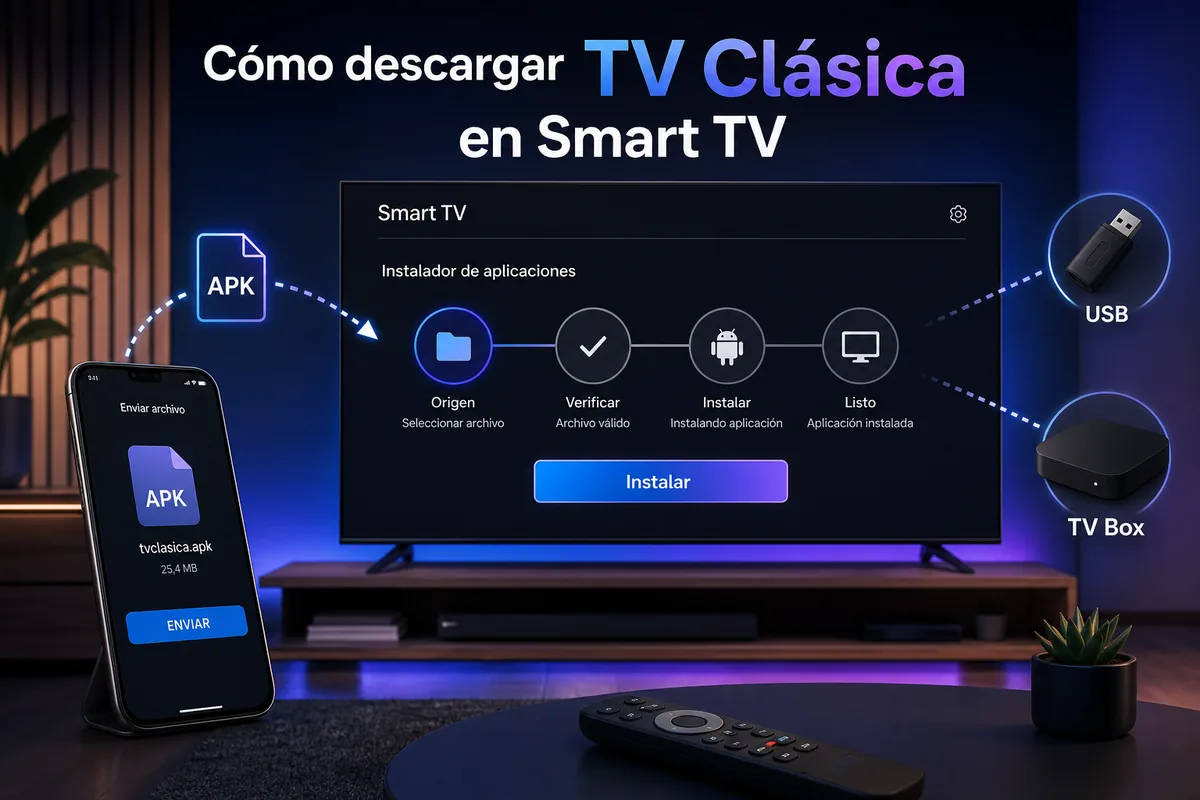
Best device for live channels
Experience changes with screen, memory and controls. Pick the device for stability, not only for screen size.
Android phone
Best for initial testing because touch controls and quick network switching make diagnosis easier.
Android TV or Google TV
Works well when the APK supports remote navigation. Use strong Wi-Fi or Ethernet for big-screen playback.
TV Box
Useful for non-Android TVs. Check free space, available memory and whether the system kills background playback.
PC emulator
A fallback for Windows testing, though streaming depends heavily on emulator and graphics acceleration.
Checklist for diagnosing TV Clasica live interruptions
Use this table to decide whether to wait, clear cache, change network or update.
| Symptom | Check first | Next action |
|---|---|---|
| Only one channel fails | Try other categories | Wait and retry; reinstalling rarely helps |
| Everything loads slowly | Test Wi-Fi or Ethernet | Restart router and close background apps |
| The app closes | Memory and Android version | Clear cache, reboot and check compatibility |
| The section is missing | Installed version and source | Use the latest-version guide before updating |
| Remote cannot select | TV mode or mobile app behavior | Try Bluetooth mouse or phone install |
Common errors while watching TV Clasica live
Most issues can be fixed without downloading another APK copy. Start with reversible changes.
A channel keeps loading
Wait a few seconds, test another signal and change network. If only one channel fails, installation is probably not the issue.
Playback cuts every minute
Use 5 GHz Wi-Fi or Ethernet, avoid VPN and close data-heavy apps. On TV Box, reboot before reinstalling.
The app asks for permissions again
Check whether Android reset permissions after an update. Grant only what is needed and avoid APKs asking for unrelated access.
The new version works worse
Confirm the file came from a trusted source and matches expected name, size and version. Avoid MOD or compressed variants.
TV Clasica live FAQ
Still need the app installed?
Start from the main page to download TV Clasica APK, then return here if you need to improve live playback.
Go to downloadUsage note
tvclasica.blog is an unofficial informational guide. Channel, category and content availability can change by region, version or source. Use only files you can verify and follow the rules that apply in your location.