TV Clasica for Smart TV and TV Box: how to install the APK
Before downloading TV Clasica for Smart TV, check the operating system. Android TV, Google TV, Fire TV and Android TV Boxes can run compatible APKs; Tizen and webOS cannot. Choose USB, Wi-Fi or Downloader.
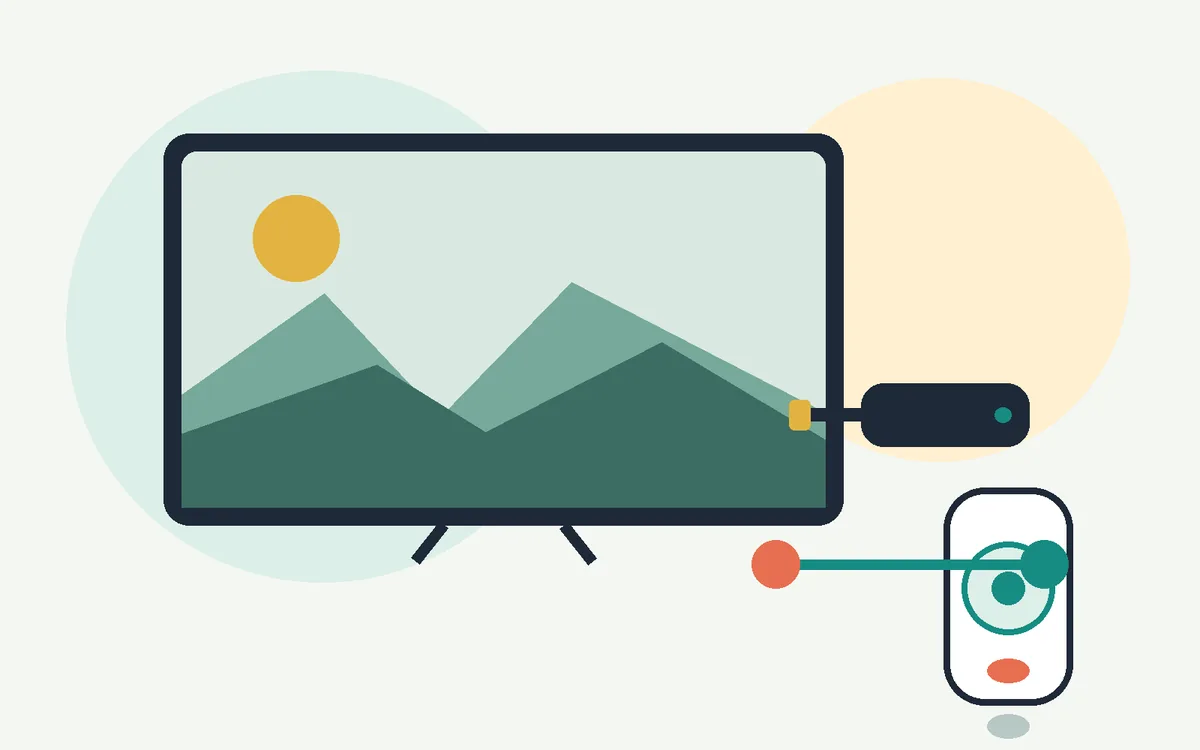
Quick answer: the most reliable Smart TV method
On Android TV, Google TV and Android TV Boxes, download the APK on a phone or computer and transfer it by USB or Wi-Fi so you can check the file first. Downloader is another option on Fire TV. Verify the source and permissions before installing.
USB: best for Android TV and TV Box
Download the APK elsewhere, copy it to a USB drive, plug it into the TV, and open it with a file manager.
Wi-Fi transfer: useful without USB
A file transfer app can send the APK from your phone to the TV when both devices are on the same network.
Downloader: practical on Fire TV
Downloader can fetch the APK directly, but you must type the URL carefully and check the file before installing.
Before you start
APK details can change when the app is updated. Always check the file name, version, size and requested permissions on the installation screen.
Pick the right route before downloading
Smart TV searches often mix installing on Android TV, using Downloader on Fire TV, and checking whether a closed Smart TV can run APK files.
| Case | Best method | Avoid |
|---|---|---|
| Android TV or Google TV | USB or Wi-Fi transfer with a file manager | TV browsers that interrupt downloads |
| Fire TV or Firestick | Downloader with temporary install permission | Shortened or mistyped URLs |
| Android TV Box | USB, trusted browser or local transfer | Updating when Android shows a signature conflict |
| Smart TV without Android | Use an external Android TV Box | Forcing APK files into closed app stores |
3 ways to download TV Clasica on Smart TV
Choose the method supported by the device. Android TV, Google TV, Fire TV and Android TV Boxes can install compatible APKs; Tizen and webOS cannot open Android apps directly.
USB: install from a drive
Download the APK on a phone or computer, copy it to a USB drive, then open it on the TV with a file manager. Check the file before transfer.
Wi-Fi: send the APK locally
Use a compatible transfer app on both devices on the same network. Open the received file from the TV's downloads folder.
Downloader: fetch on Fire TV
On Fire TV or some TV Boxes, Downloader can save an APK from a typed address. Check the URL before starting the download.
How to install TV Clasica APK on Smart TV step by step
These steps apply broadly to Android TV, Google TV, Fire TV and Android TV Box devices. Menu names may vary by brand, Android version and launcher.
Confirm that your TV can install APK files
Look for Android TV, Google TV, Play Store or Android app settings. If the TV only has a closed app store and no APK support, use an external Android TV Box.
Download the APK from a recognizable source
Use the main TV Clasica page on tvclasica.blog to review the current version. Avoid strange file names, inconsistent sizes, and pages promising MOD or premium versions.
Move the file to the television
Copy the APK to USB or send it over Wi-Fi. On the TV, open a file manager such as File Commander, X-plore, or the file app already installed.
Allow installation only for the app you are using
When Android blocks the installation, open Settings > Security or Privacy > Install unknown apps and temporarily allow the file manager, browser, or Downloader.
Install, open and test playback
Run the APK, review permissions and choose Install. Open TV Clasica and test playback on stable Wi-Fi before changing anything else.
Turn the unknown-app permission off again
After installation, disable that permission for the file manager or Downloader. Leaving it enabled increases the chance of accidental APK installs later.
How to install TV Clasica on Fire TV Stick with Downloader
Fire TV Stick runs Fire OS, which is separate from Android TV. Check the model, free storage and file source; menu names vary by device and Fire OS release.
Check the model and compatibility
Review the model, Fire OS version and available storage. Confirm that the APK supports the device; do not assume every Android file will work.
Install Downloader from Amazon Appstore
Add it from the Fire TV's own app store. Avoid third-party installers and shortened links for getting the tool.
Allow unknown apps for Downloader only
Open Settings, My Fire TV and Developer Options; if available, enable Install Unknown Apps for Downloader. ADB debugging is not needed.
Download, install and turn the permission off
Verify the address on its source page and check the name, displayed size and requested permissions before installing. Test playback, then disable Downloader's permission. If installation fails, check storage and compatibility.
Menus vary by model and Fire OS. If an option is missing, consult the manufacturer's help; do not use codes or download addresses you cannot verify.
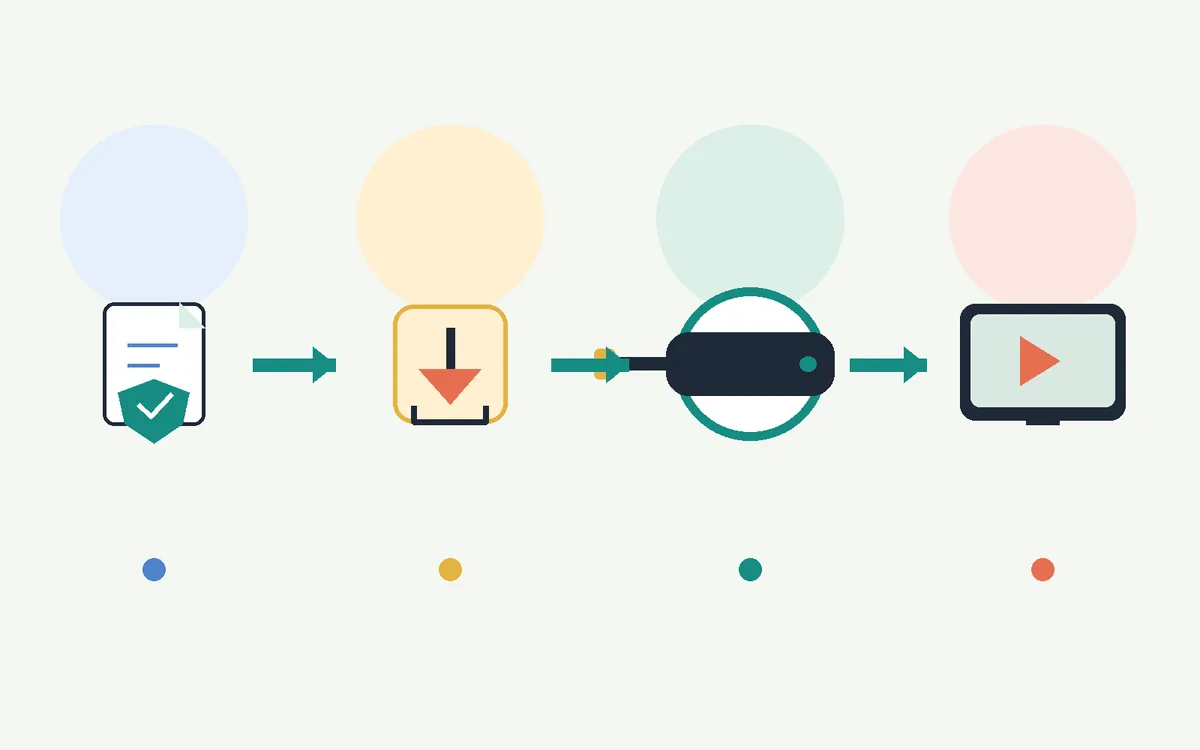

Compatibility: Smart TV, Android TV, Fire TV and TV Box
Android TV and Google TV
These are the most direct cases. Transfer the APK, allow installation from the file manager, then open the app from the TV app menu.
Android TV Box
Usually compatible when it runs real Android and has enough storage. Check that the remote can navigate the app without a touch screen.
Fire TV or Firestick
Often uses Downloader plus developer options. If your device does not show that menu, check My Fire TV settings before downloading.
Non-Android Smart TV
Closed TV systems generally cannot install APK files directly. Connect an Android TV Box if APK installation is required.
Network and performance
Use stable Wi-Fi or Ethernet for big-screen streaming. Weak signal can look like an app failure even when the installation is fine.
Remote control navigation
Some mobile-first APKs do not navigate perfectly with a remote. A Bluetooth mouse or remote-control app can help with hard-to-reach buttons.
Common TV Clasica Smart TV installation errors
The TV does not recognize the APK
Make sure the file ends in .apk, is not inside a ZIP archive, and is stored on a USB drive format the TV can read.
Installation is blocked
Allow unknown-app installation for the exact app opening the file: file manager, browser, or Downloader. Permission for another browser will not help.
The app installs but will not open
Restart the TV, clear the app cache, and confirm your Android version is compatible. If it still fails, download the APK again.
Video loads slowly or stops
Try a stronger network, move closer to the router, use Ethernet if supported, and close background apps.
Checklist before tapping Install
A short review prevents most Smart TV installation mistakes.
| Check | What to verify | Why it matters |
|---|---|---|
| File name | It should be a recognizable TV Clasica APK | Avoids opening the wrong download |
| Size | It should match the stated version reasonably | A tiny file may mean an interrupted download |
| Permission | Allow only the app used for installation | Limits exposure to accidental installs |
| Source | Avoid MOD, premium or aggressive mirror pages | Reduces risk of altered files |
| Network | Use stable Wi-Fi for download and testing | Prevents confusing network drops with app issues |
Frequently asked questions about TV Clasica on Smart TV
Download TV Clasica APK and move it to your Smart TV
Check the current APK on the main guide first, then return here to install it with USB, Wi-Fi transfer or Downloader.
Go to main downloadImportant notice
tvclasica.blog provides this guide for informational purposes. We are not the official developer of TV Clasica APK and do not control the content inside the app. Users are responsible for checking streaming-app legality in their location and installing APK files only from sources they trust.