TV Clasica on Fire TV Stick: install and use it
This guide separates Fire OS from Android TV, explains what to check before opening an APK, and helps you choose between Downloader, local transfer, or another viewing route. Compatibility depends on the source and the model.
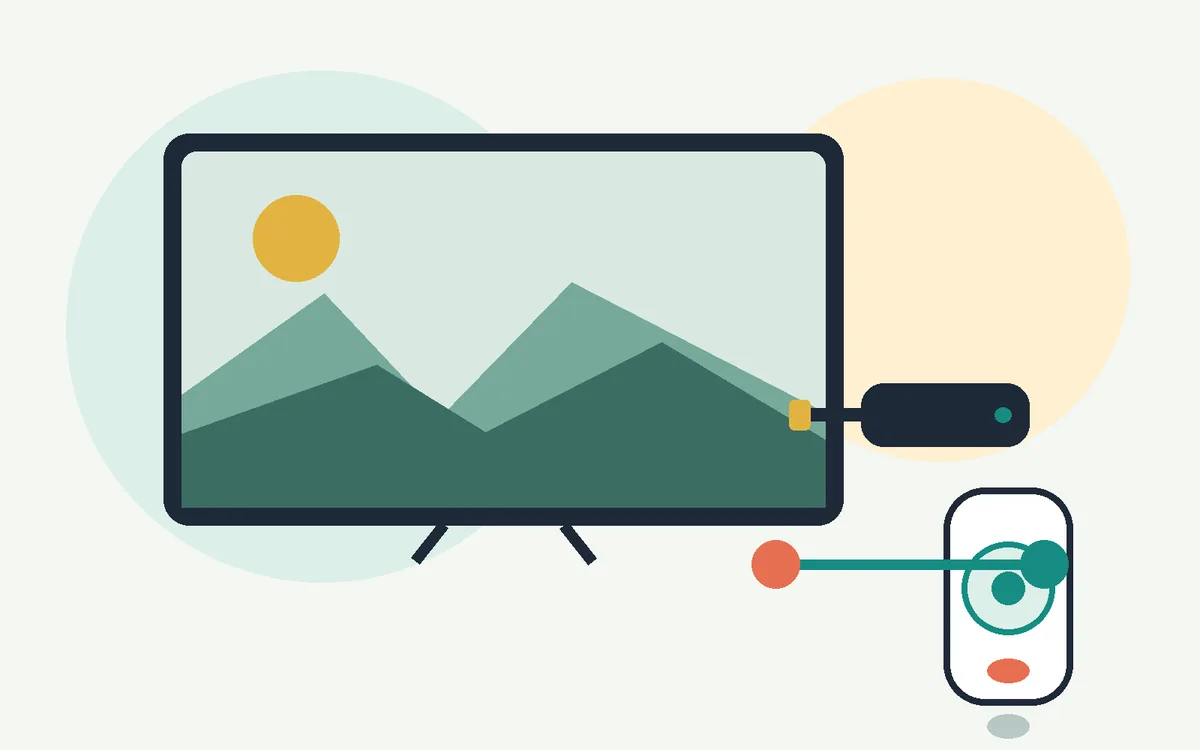
Quick answer: TV Clasica on Fire TV Stick depends on the APK and Fire OS
Can you use TV Clasica on Fire TV Stick? It may be possible when the package is compatible with Android and the source can be checked. Fire TV is different from Chromecast, Roku, or an Android TV set: menus, permissions, and remote navigation all work differently.
The most controlled route is to identify the model, confirm that the Stick and your phone or computer use a stable network, check the APK name and size, and only then transfer it with Downloader, a browser, or a local tool. A download page is not the same thing as an app published in the Amazon Appstore.
If the file will not open, installation is blocked, or the icon is missing, return to the diagnosis instead of trying random copies. The cause may be an incompatible package, a disabled permission, low storage, or an untrustworthy source. Keep the exact error text before changing more settings.
This article gives a verifiable procedure. It does not claim that an official TV Clasica Fire TV app exists. Check the file origin and stop when a page forces a download, asks for unrelated data, or mixes several similarly named apps.
Before you start
Menu names vary by Fire OS and model. Amazon documents the Device or My Fire TV > Developer Options path for installation permissions.
Choose the right route for your Fire TV Stick
Identify the equipment and the task before copying an APK. Instructions for another platform should not be mixed into a Fire TV workflow.
| Situation | Reasonable route | What to check |
|---|---|---|
| Fire TV Stick with Appstore access | Search for a legitimate listing first | Developer name, permissions, and reviews; avoid clones. |
| APK saved on a phone or computer | Local transfer or Downloader from a reviewed URL | Exact name, size, signature, and free storage. |
| Android TV or Google TV television | Use the Smart TV/TV Box guide | Do not copy Fire OS menu instructions. |
| Chromecast or Roku | Use the platform's casting or channel guide | Do not install an APK on a receiver that does not support it. |
What to check before installing TV Clasica on Fire TV Stick
A few checks prevent most failed installs and help separate a device problem from a package problem.
Look at the device label or Fire TV settings to identify a basic Stick, 4K model, 4K Max, or Cube. Fire OS and available storage can change the result. Write down the model and system version before changing permissions.
Download only from a source you can explain. If a page opens several tabs, renames the file, or tells you to disable security software, stop. Installation instructions do not make an unknown file safe.
Confirm the model
Open Settings, choose My Fire TV, and review the device information. Record the model and Fire OS version so later errors have context.
Free storage
Remove apps you no longer use and check available space. A package can download successfully and still fail while it is unpacked.
Check the network
Use the same Wi-Fi for the Stick and phone when transferring. Avoid guest networks, VPNs, and router isolation during the first test.
Keep file details
Save the name, extension, size, and download date. If a hash or signature is provided, compare it before opening the package.
Prepare the remote
Use the directional ring to move between controls. A touch-only interface may install but remain difficult to use on a television.
Define the goal
Decide whether you need an install, a cast from another device, or an alternative. If the package is incompatible, changing routes is safer than forcing it.
Enable the right Fire OS permission
Amazon places the permission inside Developer Options. Labels can change, so compare the meaning rather than copying an old tutorial word for word.
From the home screen open Settings, then Device or My Fire TV, and select Developer Options. On some recent models the menu appears after selecting Settings > My Fire TV > About > your TV and pressing the remote D-pad seven times; Amazon documents this possibility.
Enable Apps from Unknown Sources only when you are about to open a package you have reviewed. If your model shows per-app permissions, grant access to the browser or Downloader you will actually use and turn it off after the test. ADB Debugging is separate and is not needed for a normal install.
Open Settings
Choose the gear from the Fire TV home screen. Do not use the television's settings menu when the Stick has its own system.
Open My Fire TV
Look for Device, My Fire TV, or an equivalent label. This area contains model, storage, and developer settings.
Show Developer Options
If the menu is missing, open About and select the device name seven times with the remote. Go back and check again.
Allow the specific source
Turn on Apps from Unknown Sources for the browser or Downloader that will open the APK. Read the security warning before accepting.
Leave ADB off when unused
ADB is for debugging and computer connections. Do not enable it by habit or leave a debugging path open after testing.
Return to the tool
Go back to the browser or Downloader, locate the file, and check the name again before choosing Install.
How to install TV Clasica on Fire TV Stick step by step
Complete the flow without skipping the file check. If a step does not match your model, pause and use a transfer route you can verify.
Downloader is convenient because it lets you enter a URL with the remote, but convenience is not verification. Type the complete address, check the domain, and avoid short codes you cannot audit. When the APK is already on a computer, local transfer can reduce typing mistakes.
When the copy finishes, open the file manager and check the extension. A file ending in .zip, .html, or .part is not an installable APK. Do not rename an extension to trick Fire OS.
Install a known tool
If you choose Downloader, obtain it from the Fire TV store and check that its developer and name match. If it is unavailable, use local transfer instead of a questionable copy.
Enter the source carefully
Type the full URL with the remote or open it in a browser. Check the domain and connection before accepting any extra download.
Wait for completion
Do not open the file while the indicator is still moving. An incomplete copy can produce an invalid package message or close the installer.
Review the APK
Confirm the name refers to TV Clasica, the size is expected, and the file did not change during transfer. Use a hash when one is available.
Select Install
With the source permission enabled, confirm installation and wait. Do not press the button repeatedly or close the screen while storage is working.
Remove the temporary file
After the app opens, delete the downloaded APK if you do not need it. Old copies make future updates harder to identify.
First launch: remote, favorites, and playback
A successful install does not guarantee a good viewing experience. Test one short action and watch how the remote focus behaves.
Open the app from Apps and wait for the home screen to finish. Use up, down, left, right, and OK to check that controls have visible focus. If nothing responds without touch gestures, the interface may have been designed for phones rather than Fire TV.
Play a short item before setting favorites. Test volume, pause, seek, return, and exit. A short test separates a network problem from a failure that only occurs while changing channels or screens.
Check focus
The selected button should be obvious. If you cannot tell which control is active, do not enter credentials or approve payments.
Test pause and back
Use OK to pause and the back button to leave the player. The behavior should be predictable with the remote, without touch-only gestures.
Save a few favorites
Add only titles you have tested. A small list helps show whether the problem affects one item or the whole app.
Watch for buffering
Check Wi-Fi, router distance, and other downloads first. One interruption is not proof that the APK is incompatible.
Close unnecessary sessions
If the app asks for an account, review the requested data and sign out on a shared device. Do not give credentials to an external download page.
Record the result
Write down the model, system version, and exact message. This helps decide whether to update, remove, or switch to casting.
TV Clasica on Fire TV Stick not working: an ordered diagnosis
Change one variable at a time so you can tell whether the cause is permission, package, network, or source.
If the app is missing, open Settings > Applications > Manage Installed Applications and check the list. If it is installed but not on the home row, move it to your apps or open it from Manage. A missing icon alone does not prove that installation failed.
When the installer says App not installed, check free space, package architecture, and whether another version with a different signature is already present. Do not install several similarly named APKs to see what happens. If the download failed, delete the partial copy and start from a reviewed source.
If the app opens and closes, restart the Fire TV, clear its cache, and test again on a stable network. When only one title fails, the source may be the issue. When everything fails, keep the message and consider removing the package instead of stacking versions.
It is not on Home
Find it in Installed Applications and add it to the home row. Also check whether the correct Fire TV profile is active.
App not installed
Free storage, confirm the APK is complete, and avoid mixing an update signed by another source with the old package.
The permission vanished
Return to Developer Options and grant access to the application that actually opens the file. Fire OS can store the permission per app.
The download stops
Delete the partial file, restart the router, and use a stable network. Never open an APK while it still shows as downloading.
The app closes
Restart the Stick, clear the cache, and check storage. If it persists, remove the questionable copy instead of trying another mirror.
The remote does nothing
Test focus with the arrows and connect a mouse only for diagnosis. A mobile interface may not expose usable remote controls.
Video keeps buffering
Try a short item, move the Stick closer to the router, and pause other downloads. Separate buffering from package compatibility.
You want to undo it
Uninstall from Manage Applications, restart, and remove the temporary file. Use the general TV Clasica troubleshooting guide for wider playback issues.
Safety, privacy, and method limits
Manual installation raises the level of trust you must demand from the source and its permissions.
Apps from Unknown Sources is not a safety guarantee; it only lets a selected app open a package outside the store. Turn the permission off after testing, keep one reviewed copy, and avoid tools that ask for contacts, SMS, or accessibility access without a clear playback reason.
Do not enter passwords in download pop-ups or accept certificates you do not understand. Fire TV shares a network with other devices, so a poor source can affect household privacy. When a verifiable store listing exists, it is the safer route.
Reviewed source
Confirm domain, name, size, and date. A changing button or a short URL is not proof of authenticity.
Minimum permission
Enable only the permission needed by the tool that opens the APK and revoke it afterward. Keep ADB off when not debugging.
Personal data
Do not share credentials or payment codes to unlock a download. This guide does not verify outside accounts or offers.
Updates
Do not call a release the latest without a dated official source. Compare origin and signature before replacing a working install.
When to use another TV Clasica guide
The device determines the procedure. Switch pages when your equipment is not Fire TV.
Smart TV and TV Box
Use the broad Android TV, Google TV, and TV Box guide for USB, Wi-Fi transfer, and file-manager routes.
Generic Downloader
Read the Downloader guide for link and code context, then return here for Fire TV permissions and remote checks.
Chromecast
The Chromecast page covers Cast and Android mirroring; it does not install an APK on a Fire TV Stick.
Roku
Roku has a separate platform and distribution model. Follow its specific guide instead of enabling Fire OS permissions.
Visual aids for the Fire TV workflow
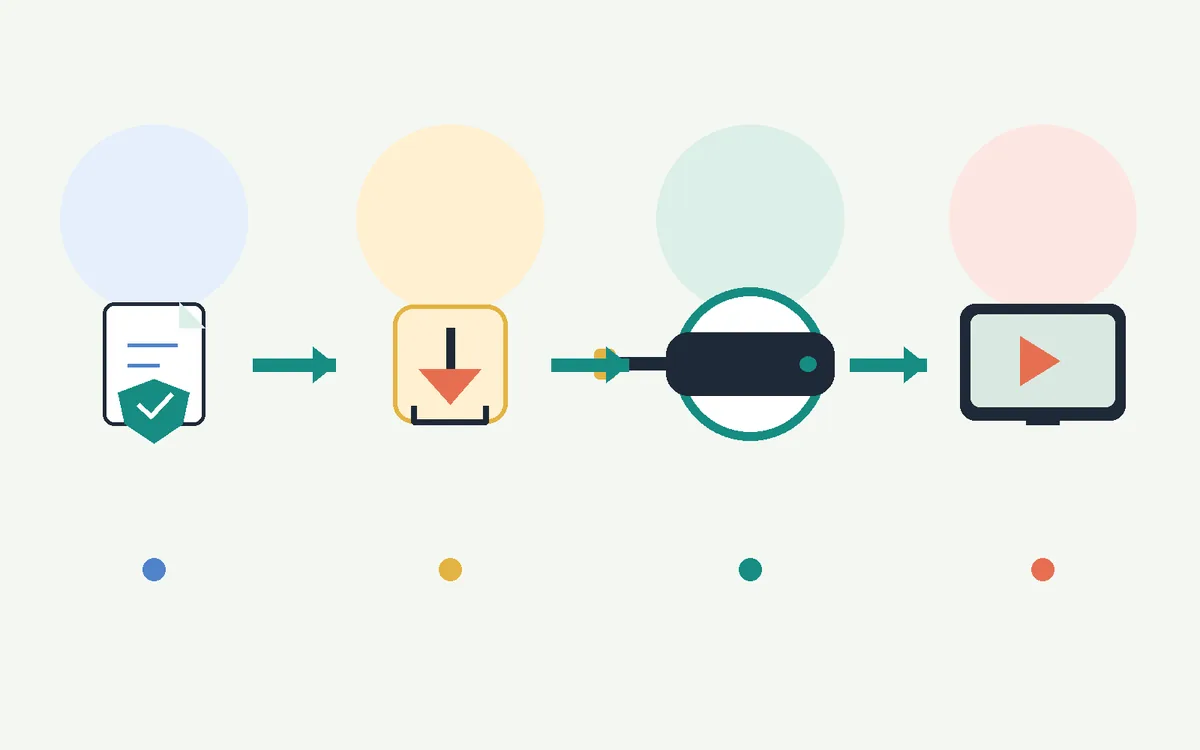
These images are editorial diagrams that reinforce the order of checks. They are not official screenshots and do not replace the written steps.

Frequently asked questions about TV Clasica on Fire TV Stick
Sources and limits
- Amazon Developer: Fire TV Developer Options documents Device/My Fire TV, Developer Options, Apps from Unknown Sources, and the seven-press path on some models.
- TV Clasica Smart TV and TV Box guide compares Android TV, Google TV, USB, and local transfer.
Compatibility notice
TV Clasica, Amazon, Fire TV, Fire TV Stick, and Downloader may belong to their respective owners. This is an independent informational guide; it does not distribute an APK, verify an official app, or guarantee that an external file is safe or compatible.